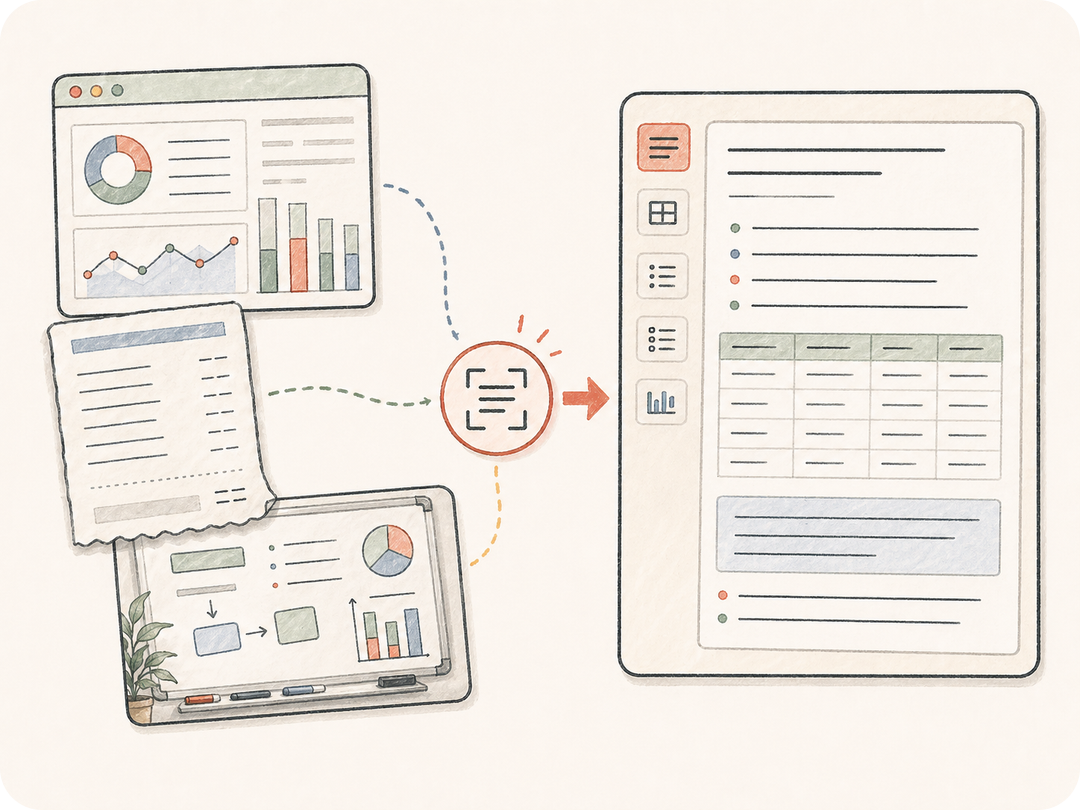
文字だけでなく構造も抽出
見出し、表、箇条書き、ボタン文言、コード片、手書き、画面上の文字構造を要件に合わせて保持します。
文字を含む画像をアップロードまたは説明してください。Kollab が OCR タスクを準備し、可視文字の抽出、表の保持、乱れたメモの整理、要約、後続作業まで元画像と一緒に扱えます。
文字を含む画像を使える内容に変え、元画像、抽出ルール、後続の修正をつなげたままにします。
見出し、表、箇条書き、ボタン文言、コード片、手書き、画面上の文字構造を要件に合わせて保持します。
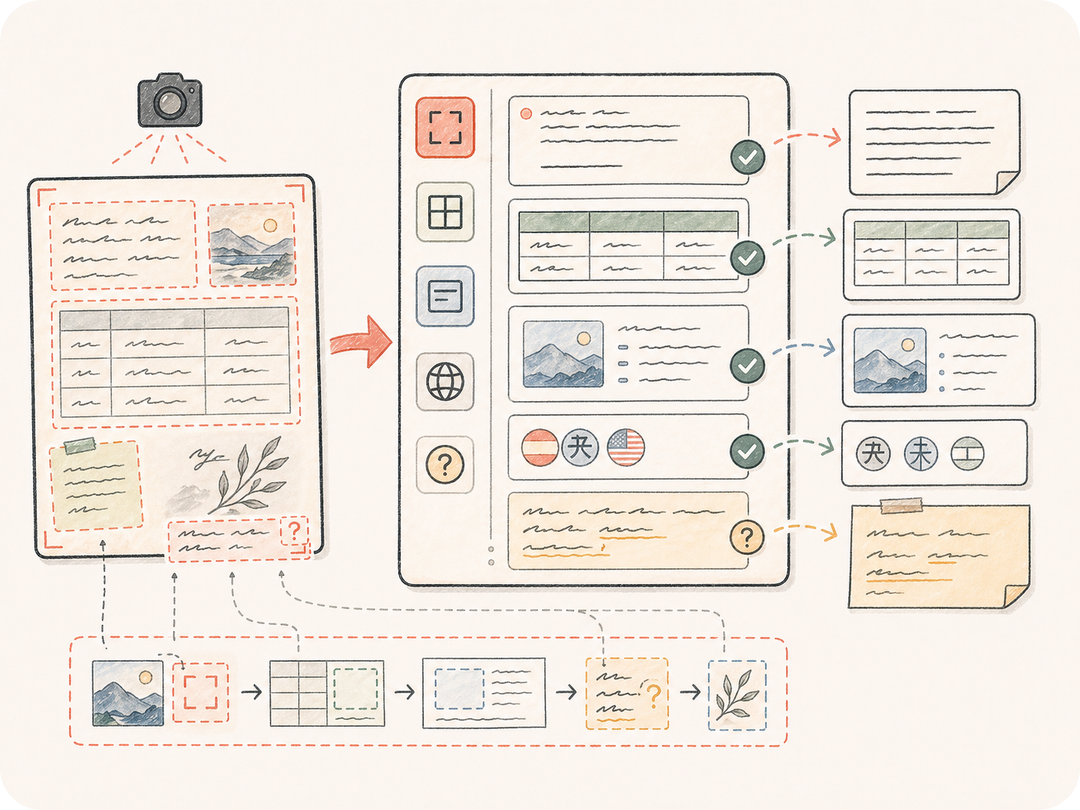
読みにくい手書き、切れた文字、信頼度の低い数字、表セルを推測せずに印を付けるよう依頼できます。
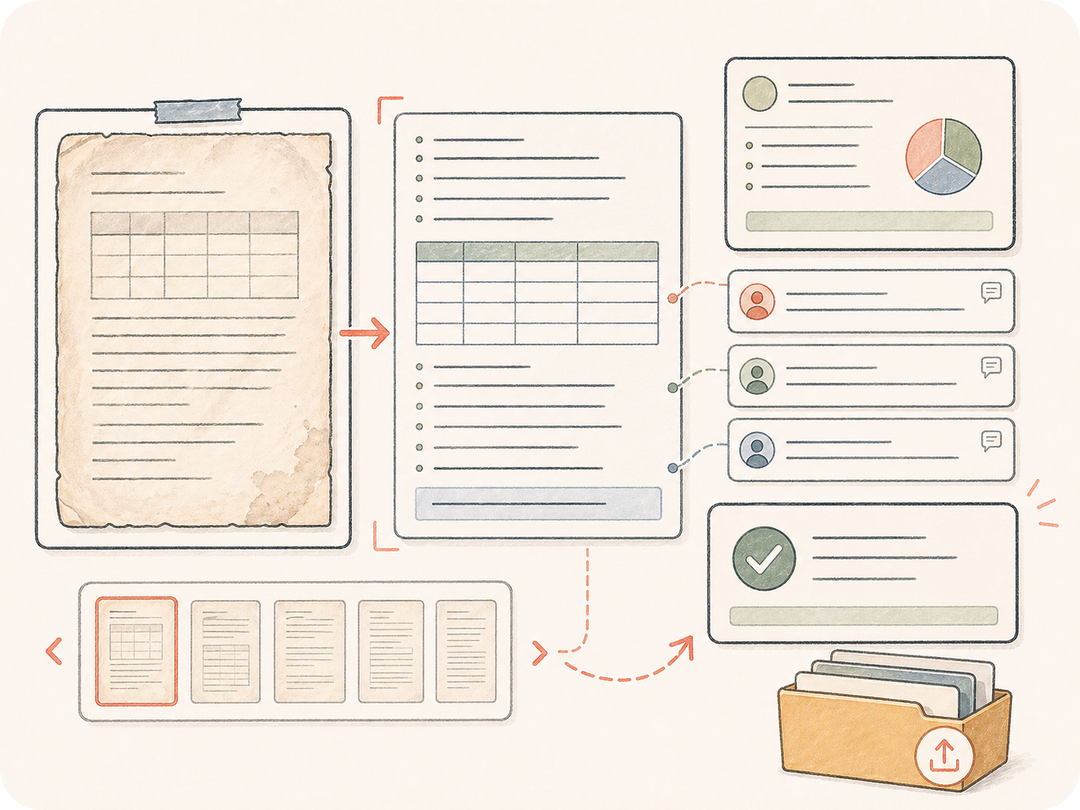
抽出文字をタスクのワークスペースに保存し、要約、翻訳、表への変換、書き出し、追加修正をチームで続けられます。
Kollab は画像ソース、OCR ルール、形式要件、レビュー文脈を準備済みの画像から文字タスクにまとめます。
画像 URL を貼り付けるか、Kollab 内で非公開のスクリーンショット、レシート、ホワイトボード、文書写真をアップロードします。
言語、表の扱い、形式、不明箇所の印、希望する出力構造を指定します。
準備済みの OCR とクリーンアップ依頼が Kollab に渡されます。
抽出文字を確認し、要約、表の書き出し、同じ文脈での編集を依頼します。
スクリーンショット、ホワイトボード、レシート、フォーム、表、文書写真など、単なる抽出以上が必要な画像に使えます。
画面上の文字、エラーメッセージ、ボタン文言、コードブロック、商品コピーを抽出します。
撮影したメモをアイデアのグループ、決定事項、アクション項目、読みやすい要約に整理します。
項目、明細、金額、日付、表、フォーム内容を抽出して後続作業に使います。
文字を含む画像を Kollab の準備済み画像から文字タスクに変え、OCR ルール、出力形式、レビューを同じワークスペースにまとめます。
このページから無料で準備済み Kollab タスクを開けます。利用上限と有料機能はプランとプロバイダー設定によります。
スクリーンショット、ホワイトボード、レシート、フォーム、図表、スライド、スキャン、文書写真など、文字の多い画像に対応します。鮮明な画像ほど結果は安定します。
できます。表の保持、Markdown 表、CSV にしやすい行、フィールドと値の構造を指定できます。
読みやすい文字、構造化された表、要約、アクション項目、抽出フィールド、後続処理の指示を Kollab に保存できます。
普通の OCR は一度文字を抽出するだけです。Kollab は元画像、抽出ルール、レビューコメント、クリーンアップ依頼、後続作業を同じタスクに残します。
鮮明な画像を使い、言語を指定し、不明文字を明示するよう依頼し、レイアウト、表、改行を保つ必要があるかを書いてください。
できます。抽出文字は元画像とタスクスレッドに残るため、チームで確認、修正、要約、書き出しができます。
スクリーンショット、メモ、レシート、文書写真を、読みやすくレビュー可能な文字に変えます。