Menu bar and shortcuts
Start a task, search your conversations, open settings — the usual keyboard shortcuts, while Kollab is the app you are in.

 Developer preview
The same workspace you use in the browser, plus one thing the browser cannot do: the agent can work with the files on this machine — reading them, changing them, running the commands you ask for. Available for Mac, Windows and Linux.
Apple Silicon, macOS 12 or later · Windows 10 or later, 64-bit · Linux, 64-bit x86
See how it works
Everything below is the difference between running Kollab in a tab and running it as an app on this computer.
This is an early build. It works, it updates itself, and a few edges are still rough.
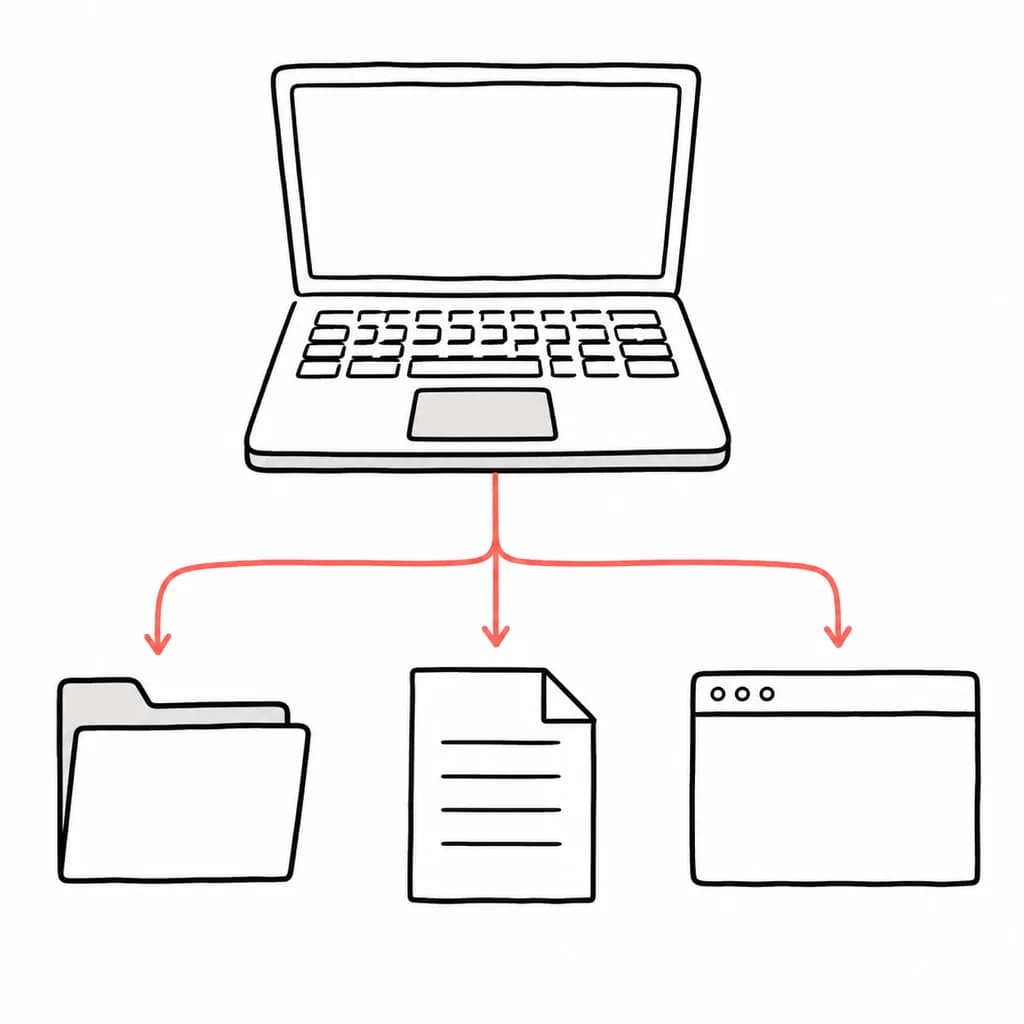
Point it at a folder and ask. It can read what is there, edit files in place, and run the commands you would have run yourself — on your own computer, with your tools, not on a copy in some sandbox. Your computer makes the connection outward, so there is no port to open and nothing to expose to the internet.

Long jobs keep going while you do something else. When one finishes, or when it needs you to approve something, an ordinary desktop notification arrives and clicking it drops you straight into that task. In the app this is on from the start, where a browser tab has to ask for permission first.
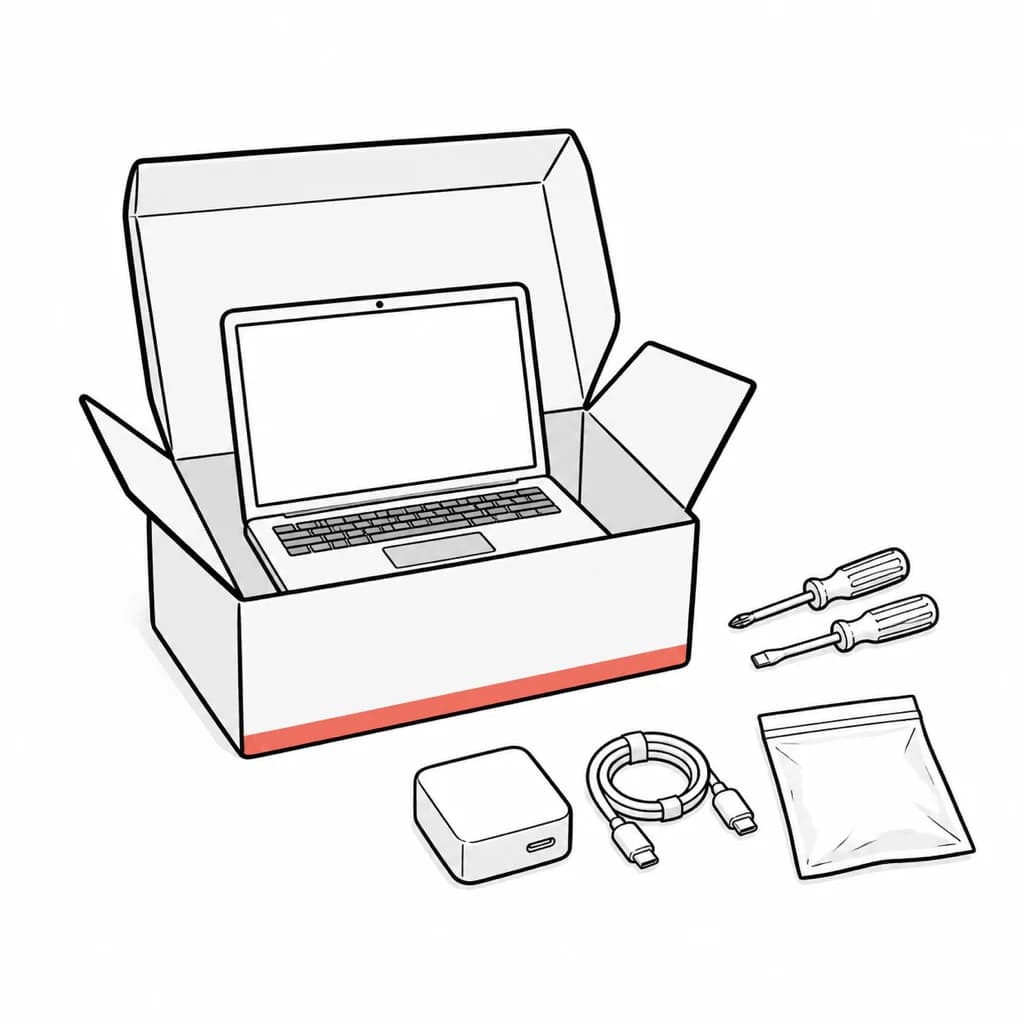
Everything the agent needs is already inside the app — there is no separate command-line tool to fetch, no runtime to install, no toolchain to configure. On a Mac or a Linux desktop it also repairs the sparse environment an app inherits when it is opened from Finder or a desktop launcher rather than a terminal, so the commands it runs can still find the tools you installed in your shell.
New versions download in the background without interrupting anything. When one is ready, the Kollab menu says so, and installing is a single click on that menu item.
Start a task, search your conversations, open settings — the usual keyboard shortcuts, while Kollab is the app you are in.
Signing in hands off to the browser you already use. If you are signed in there, you come straight back into the app.
Anything pointing outside Kollab opens in your real browser, with your real sessions and extensions, instead of a stripped-down window inside the app.
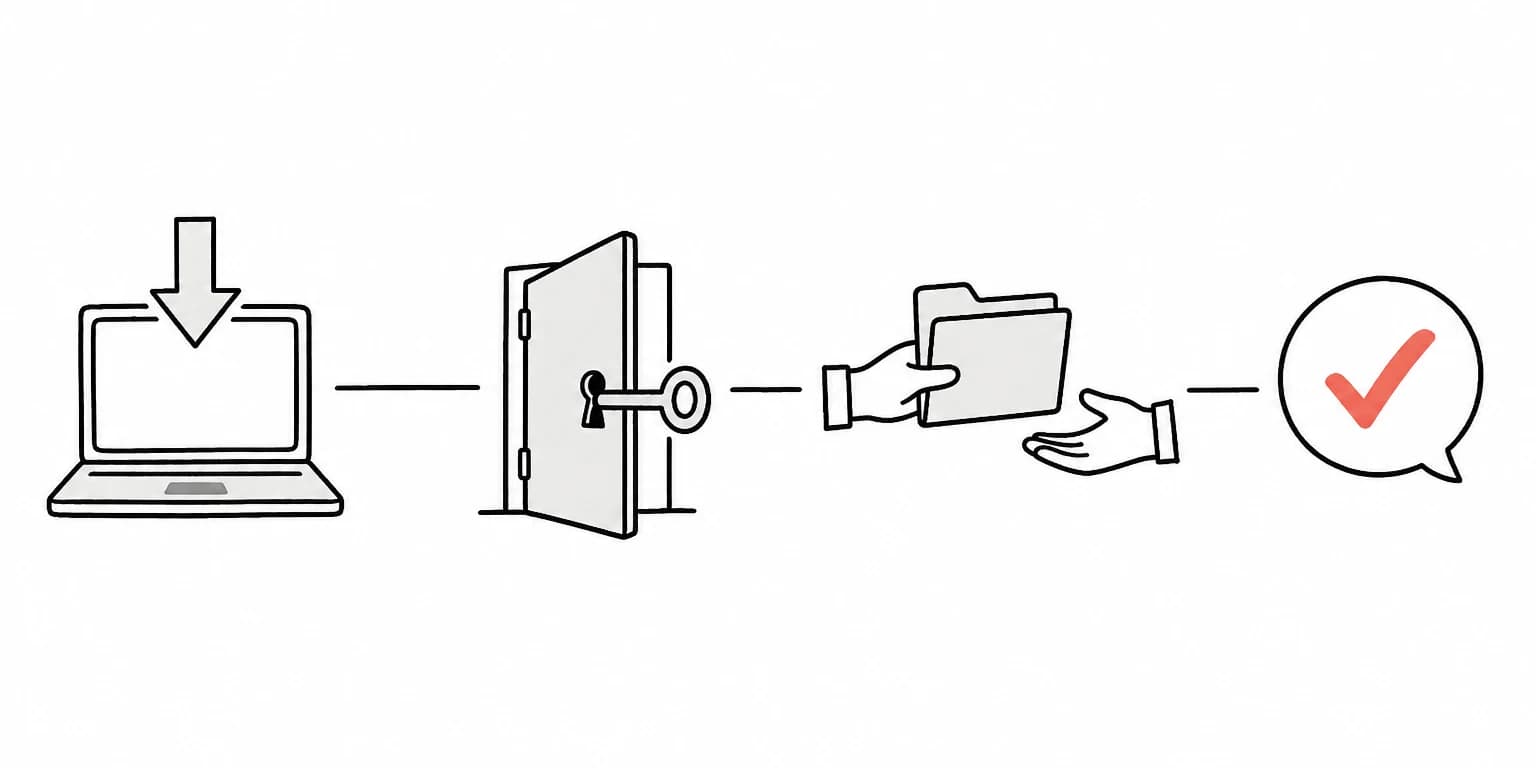
Four steps, and you only do the first three once.
Download the build for your computer and open it. On a Mac you drag Kollab into Applications; on Windows and Linux the installer takes care of it.
Your computer registers itself as one of your machines as you sign in. There is no device to pair and no connection to set up by hand.
A Kollab folder in your home directory is ready to use immediately. For anything beyond it, you pick the folder yourself in your system's own folder chooser — the app cannot grant itself a path.
Looking through a folder happens right away. Changing a file or running a command comes back to you as a request in the conversation, and nothing happens until you say yes.
Kollab works best when Skills, Bots, connectors, and ready workflows reinforce each other across the same team workspace.
Access to your own computer is worth being precise about, including where the limits are.
Your computer has the final say
The list of folders the agent may touch lives on this computer, and every request is checked against that local list. A scope claimed from the server side is not trusted and does not widen it.
Changing things needs your yes
By default the agent can look around an authorised folder freely, but writing a file or running a command stops and asks you in the conversation. The request waits for you rather than expiring quietly.
Administrator commands are always refused
sudo and its equivalents are rejected outright — including after you switch a computer to full access. There is no phrasing that gets around it.
Credential files always stop and ask
SSH keys, cloud credentials, environment files and private keys are treated as sensitive wherever they sit, and come back for your approval even inside a folder you already authorised.
Device credentials never touch the disk
The credential this computer uses to identify itself is handed to the local process in memory. It is never written to a file, and never exposed to the page you are looking at.
Only while Kollab is open
The local side runs as part of the app. Quit Kollab and it stops with it — nothing keeps listening for new work, and nothing starts on its own when you boot the machine. A long-running process the agent started for you, such as a dev server, keeps running until it exits or you stop it.
Mac, Windows and Linux are all available now. iOS and Android are being built.
A signed, notarised build for Apple Silicon Macs. It updates itself, so this is the last time you need to visit this page.
DownloadApple Silicon · macOS 12 or later
An installer for Windows 10 and later on 64-bit machines. Install once and it keeps itself up to date from then on.
DownloadWindows 10 or later · x64
A .deb for Debian and Ubuntu, and an AppImage if you would rather not install anything. New versions download in the background — the AppImage replaces itself, and the .deb asks for your password like any system package.
Download .deb64-bit x86 · Ubuntu 22.04, Debian 12 or a comparable GTK 3 desktop
Or download the AppImageiOS and Android are still being built. We will publish them here as soon as they are ready.